
Place images in a table that stay within the cell

  • April 9, 2025
  • 2 replies
  • 494 views

Forum|alt.badge.img+1

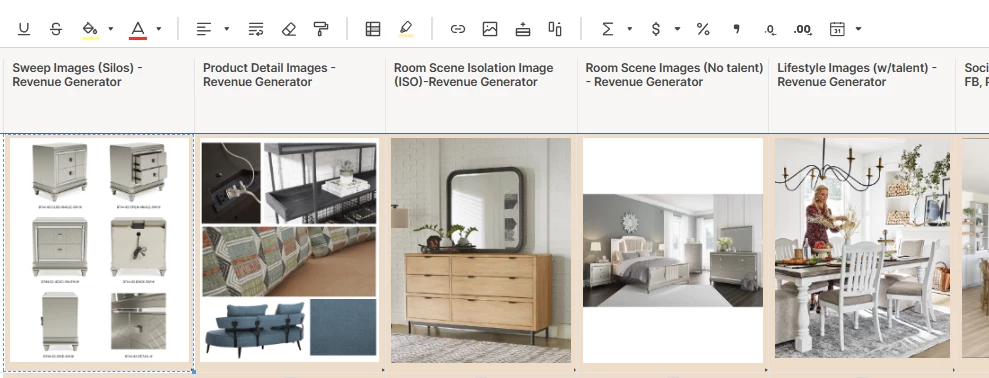
I want to create a grid or table where I place a image in a cell and it stays within the cell.  When I try to do this the image just sits on top of the grid or table not within the actual cell.  I am trying to create a grid of image types. 
See example below this was created in in a Smartsheet but I want to create in a Miro board instead


2 replies

Forum|alt.badge.img+1
  • Contributor
  • April 9, 2025

I want to create a grid or table where I place a image in a cell and it stays within the cell.  When I try to do this the image just sits on top of the grid or table not within the actual cell.  I am trying to create a grid of image types. 
See example below this was created in in a Smartsheet but I want to create in a Miro board instead



HI

@PDunn 

as I know how to to drag the image to the table,by mouse drag the image out of table and put it at the table,which I knowing


Eca
Mironeer
Forum|alt.badge.img+2
  • Mironeer
  • April 11, 2025

Hi ​@PDunn,

I recommend using Miro’s grid tool (or creating a grid layout using rectangles or frames). Here's how you can do it: https://drive.google.com/file/d/1gk-JLqJRwF3opDCMmRuGujgp7MI-GiuP/view?usp=drive_link

  1. Create a grid using shapes or the grid tool from the side panel.

  2. Drag your image into the cell — the image will size itself based on the container you've placed it in.

  3. Lock the grid layout once you're happy with the setup (right-click > Lock) so it doesn't move or resize if the image is dragged.

This approach gives you more visual control and keeps everything nicely aligned — perfect for a gallery or visual categorization board.


Let me know if you'd like a template or a quick video walkthrough!